
If you’ve tried to program a used Nissan BCM with an Autel Automotive Diagnostic System Tool and the VIN won’t write, you’re not alone. This common issue often has a simple root cause: the BCM is used, not new.
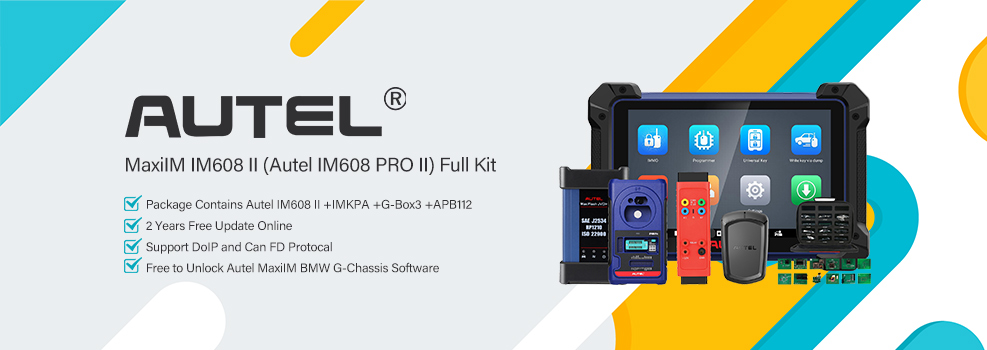
In this guide, we’ll walk through an example with a 2016 Nissan Rogue using Autel IM608 II and explain exactly what went wrong – and how to avoid it in the future.
Key Symptoms & Error Codes
When trying to program a used Nissan BCM, you may encounter:
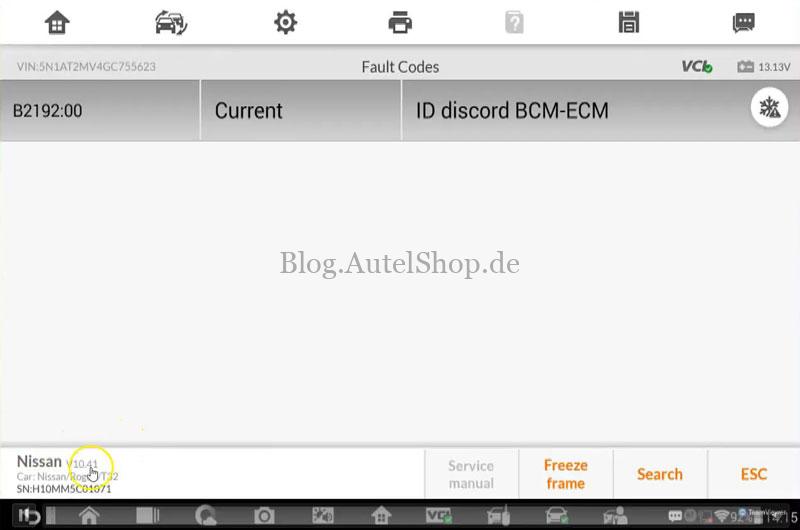
- B2192 -ID mismatch between BCM and ECM.
Meaning: Stored identity values in the BCM and ECM don’t match. Nissan blocks programming and starting.
- P161F -Immobilizer error.
Meaning: The immobilizer handshake fails. The ECM cannot verify the BCM or key belongs to the vehicle.
These codes usually appear together and prevent VIN registration and NATS initialization.
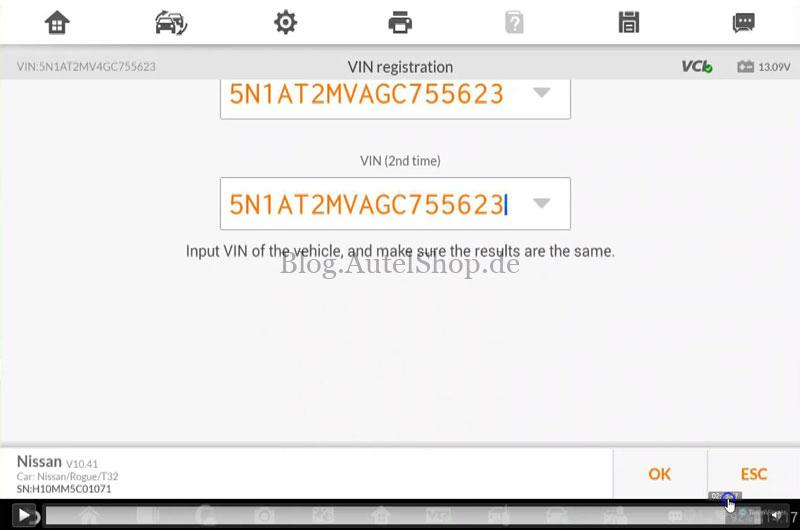

Why It Happens: The Used BCM Problem
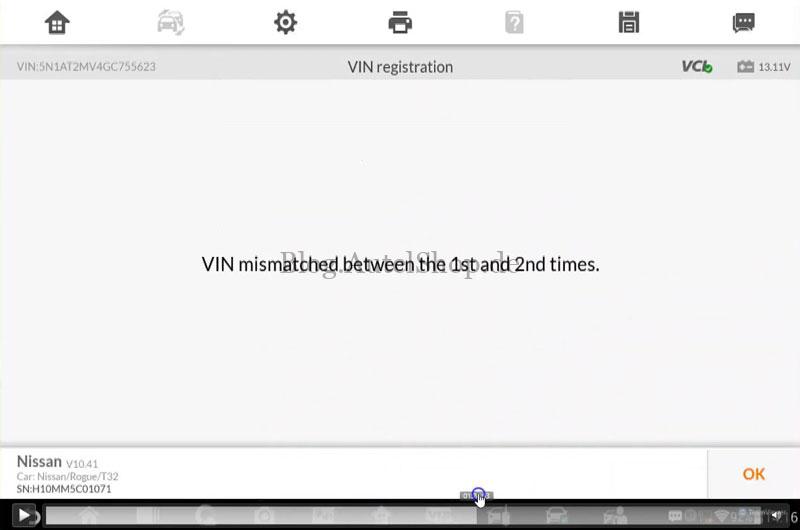
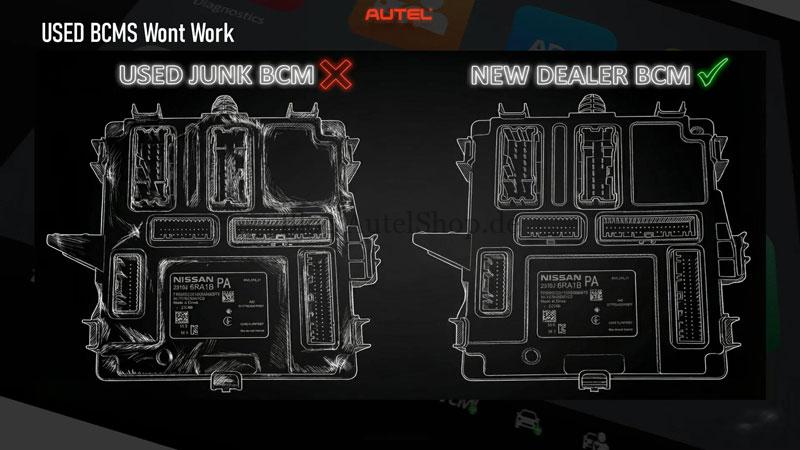
On Nissan vehicles, the VIN field in the BCM can only be written once. A used BCM already has a VIN stored from its previous vehicle. Autel tools (and most others) cannot overwrite it.
If you try to program a used BCM:
- The tool will communicate with the module.
- But VIN write and configuration functions will always fail.
- The vehicle sees this as a security mismatch and locks further operations.
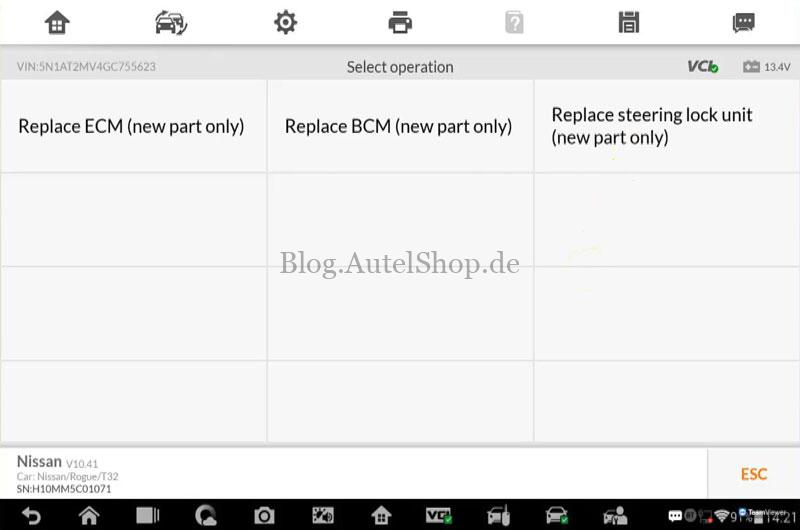
Solution: You must use a brand new, dealer-supplied BCM for Nissan VIN registration.
Step-by-Step Guide to Avoid This Issue
Follow this workflow before starting any Nissan BCM programming job:
✅ Step 1: Confirm Module Condition
- Ask the customer: Is the replacement BCM new or used?
- If used, stop. Explain that a new BCM is required for Nissan programming.
✅ Step 2: Keep the Original Module
- Leave the original BCM installed until the new one is ready.
- Use the Autel scanner to read and save the configuration data from the original BCM first.
✅ Step 3: Follow the Correct Programming Order
For a new BCM, follow Nissan’s official sequence:
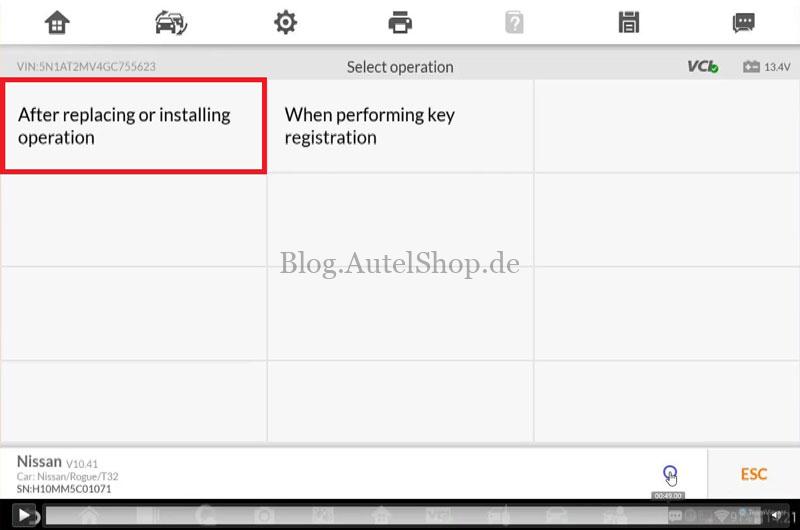
- Write the VIN via Special Functions > VIN Registration.
- Perform NATS Initialization to sync BCM with ECM.
- Re-register all intelligent keys.
- Verify CAN Gateway configuration.
✅ Step 4: Research Before Starting
- Look up VIN-specific repair information.
- Confirm tool compatibility (Autel IM608 Pro2 supports this, but only with a new BCM).
- Provide an accurate quote that includes key programming and initialization.

Quick Checklist Before You Begin
- Replacement BCM is new (not used)
- Original BCM is still available for data backup
- VIN is correctly identified
- Autel tool is updated and ready
- NATS initialization is planned after VIN write

Final Takeaway
Most failures happen because of incorrect parts, not lack of skill. Always verify the BCM is new before starting. Follow the OEM procedure, and use the right tool for the job.
Need professional support?
Email: sales@AutelShop.de
Wechat: +86-13429866263
Whatsapp: +86-13429866263